Solution Overview
What Veil is, how a request flows from intake to release, and the safety principles behind every package that leaves the building.
What Veil is and the problem it solves
Veil is an AI-assisted disclosure workflow platform for official-information requests in New Zealand. It manages the whole lifecycle of a request under the Act: intake → automated detection → tiered human review → permanent redaction → export package → audit trail. It is not merely a redaction tool.
The problem it solves: releasing official information safely is slow, manual, and error-prone — one missed name can breach privacy. Reviewers must apply the correct statutory withholding ground to each piece of withheld content, and prove they did. A response is only defensible if there is an immutable record of who decided what, and when. Veil makes disclosures faster, safer, and auditable — and blocks an external release that cannot be verified clean.
AI detection is an optional cloud feature your administrator configures — pattern detection still runs without it. OCR is also administrator-configured, but processing new uploads depends on it; the review, redaction, export, and audit workflow for already-processed documents always works.
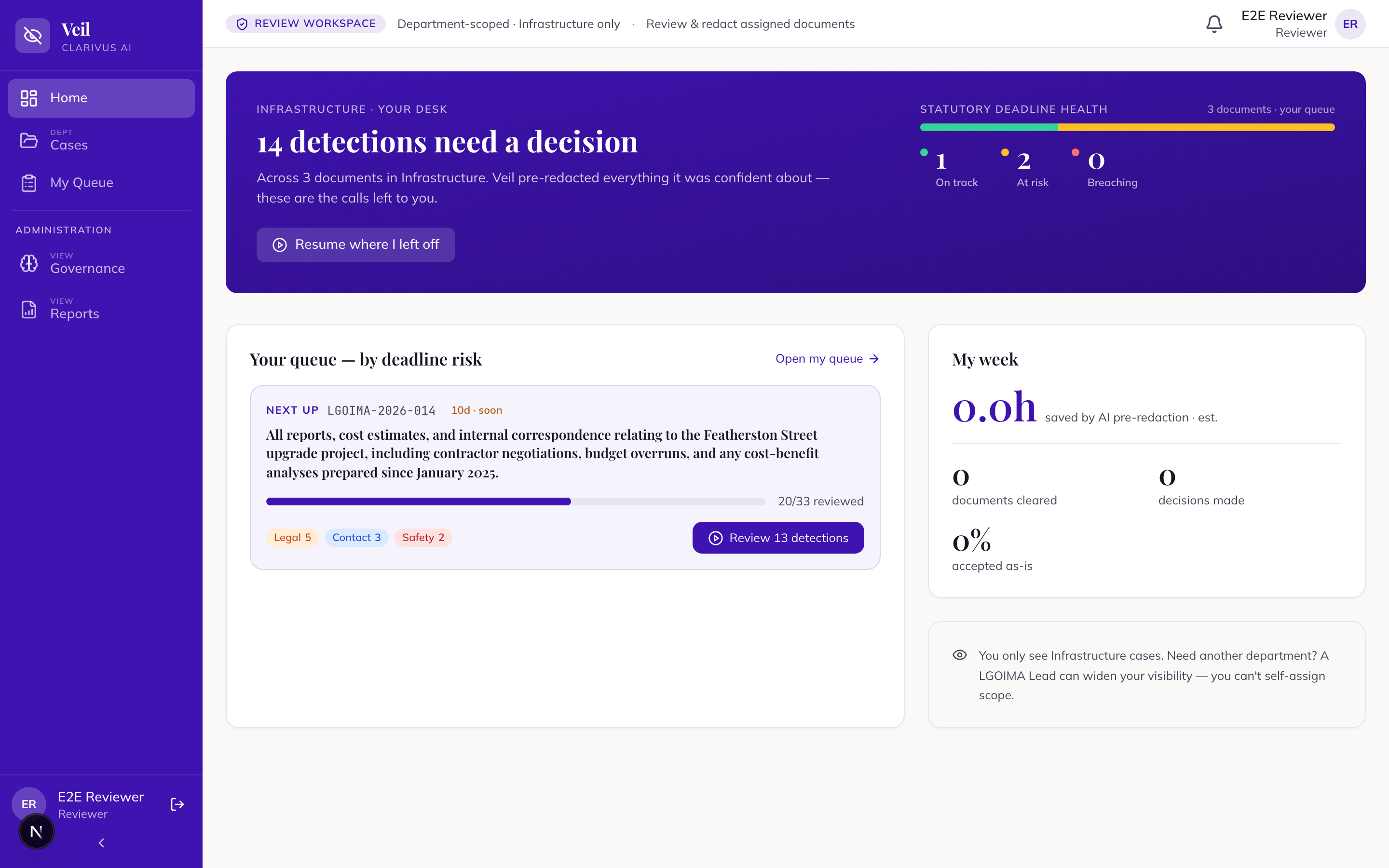
The disclosure lifecycle — nine steps
Every request follows the same journey from intake to a closed case. Your role’s training module goes deep on the steps you own; here is the shape of the whole journey:
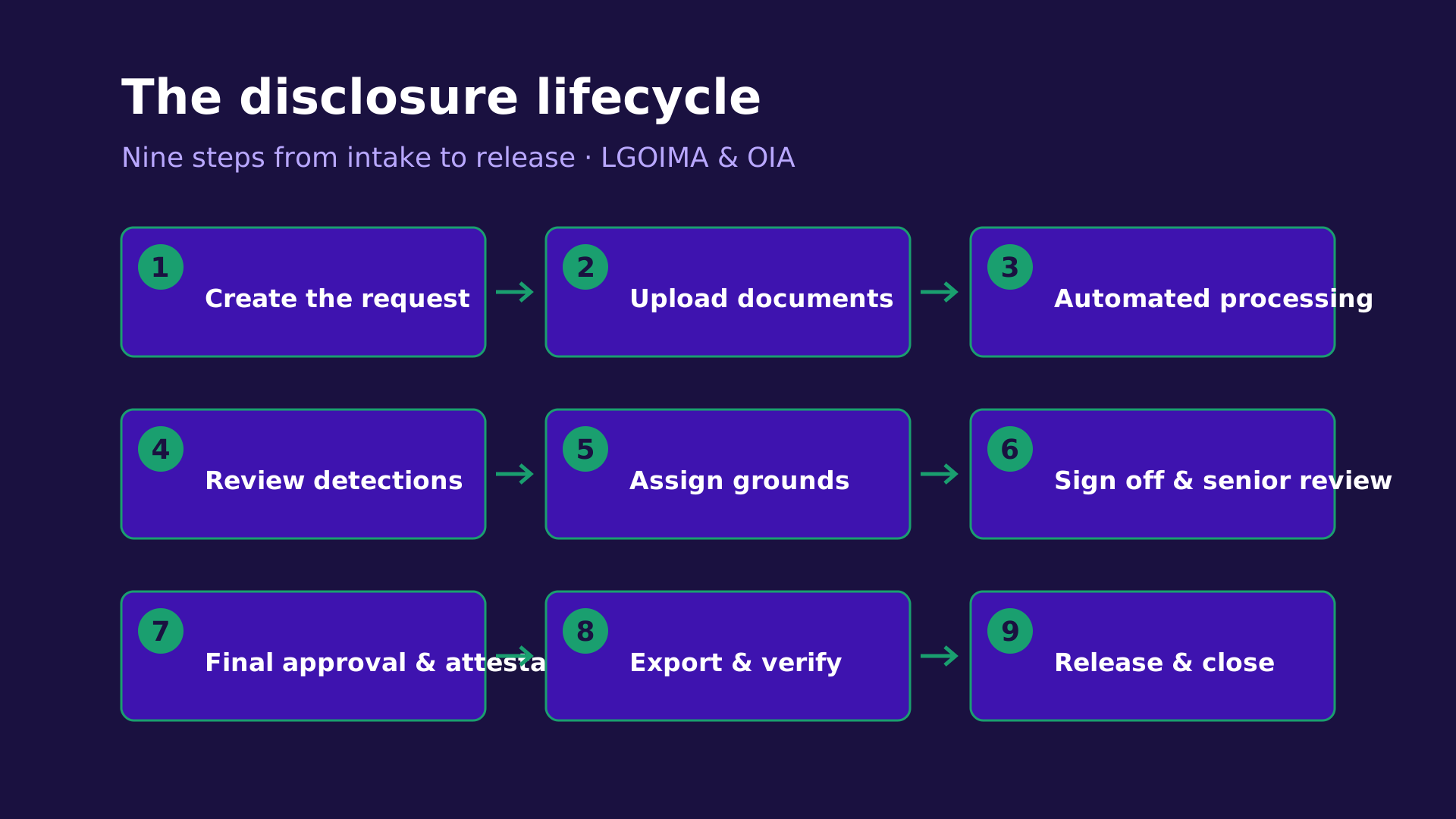
- Create the request The Lead uses “Log a new request”; Veil assigns the “Reference” and the “Statutory deadline” automatically.
- Upload documents On “Document Ingestion”, drag and drop your files. (An “Import from SharePoint” tab appears where Microsoft 365 is connected — in-app import is coming soon.)
- Automated processing Veil validates, extracts text (OCR where needed), and runs pattern and AI detection; the document reaches “Ready for Review”.
- Review detections Decide each one: “Redact” or “Don’t redact — keep visible”. Nothing is pre-redacted — a person makes every decision.
- Assign withholding grounds Every redacted detection gets a statutory ground via “Edit grounds”.
- Sign off and senior review The reviewer presses “Sign Off”; a senior reviewer can “Request Changes” → “Send Back”.
- Final approval and attestation “Final Approval” locks each document; the approver then completes the case-level “Final sign-off” and presses “Attest case complete”.
- Export the package On “Finalise & Close”, choose the package and press “Generate Export Package”; Veil burns in the redactions and verifies they are permanent.
- Release and close The Lead presses “Mark as released” (irreversible), then “Close & archive”.
What happens to a document
When you upload a file, Veil processes it automatically before anyone reviews it:
- Validate The file type is checked — PDF, DOCX, XLSX, PPTX, email (EML/MSG), and TXT are accepted; ZIP archives and standalone images are rejected at upload.
- Extract text (OCR) The document is converted to a canonical PDF and read through the OCR service — scanned PDFs are read like any other.
- Pattern detection New Zealand personal identifiers — names, phone numbers, IRD numbers, addresses and similar — are flagged. This layer always runs.
- AI detection Where configured, the AI layer flags contextual content such as legal privilege and commercial sensitivity; custom rules your agency defines run alongside it.
- Ready for review Every flag becomes a pending detection for a person to decide — the document reaches “Ready for Review”.
From there, each document moves through a fixed set of review states:
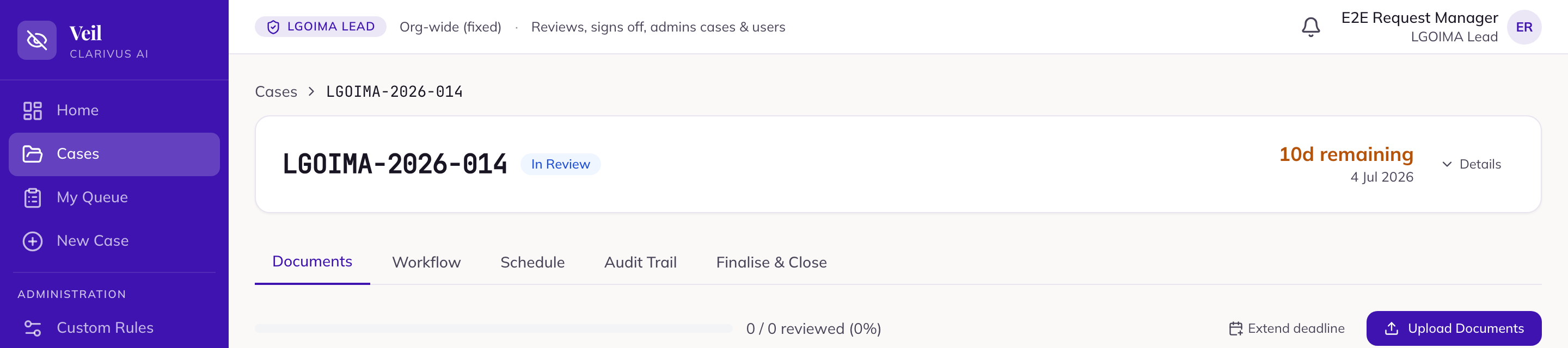
A reviewer opening a “Ready for Review” document moves it to “In Review”; once all detections are decided it becomes “Reviewed (Initial)” automatically. A senior reviewer can send it back, and a final approver’s sign-off makes it “Signed Off” — detections locked while it stays there. Raise problems before sign-off where you can; if one surfaces later, a Senior Reviewer, Final Approver or Lead can still “Send back” the signed-off document from “Finalise & Close”, returning it to “In Review” and resetting the case attestation. Only release is terminal.
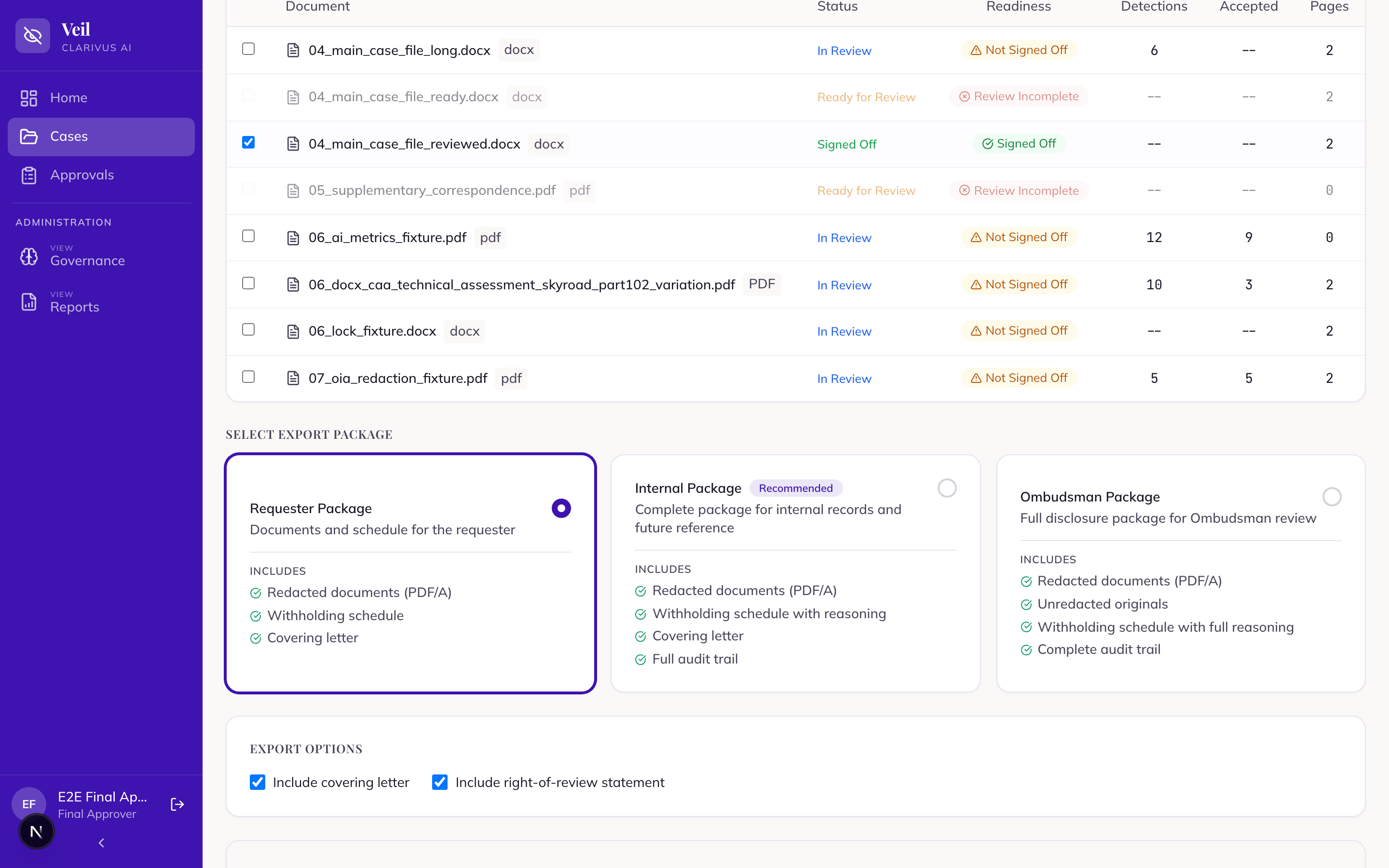
The three export packages at a glance
Veil produces exactly three package types, each for a different audience:
| Item | “Requester Package” | “Internal Package” | “Ombudsman Package” |
|---|---|---|---|
| Redacted PDFs | ✓ | ✓ | ✓ |
| Withholding schedule | ✓ | ✓ (with reasoning) | ✓ (full reasoning) |
| Covering letter | ✓ | ✓ | ✓ |
| Audit trail | — | ✓ | ✓ |
| Chain of custody | optional | ✓ | ✓ |
| Verification report | — | ✓ | ✓ |
| Unredacted originals | — | — | ✓ |
The “Requester Package” is what you send to the person who made the request — it is screened, omitting the withheld-text column, reviewer reasoning, and the verification report, and anonymising filenames to Document_001, Document_002… The “Internal Package” (marked “Recommended”) is for your own records. The “Ombudsman Package” is the full disclosure file for an Ombudsman review — the only package containing the unredacted originals.
Safety by design
Five non-negotiables underpin every release. Learn these before you touch a live case:
Redaction is permanent
At export, accepted redactions are burned in and flattened — the underlying text is destroyed, not hidden. There is no undo. The in-app “Redacted” preview only covers content visually; permanent redaction happens at export.
The system fails closed
An external release (Requester or Ombudsman package) is blocked if the automated check finds a leak or cannot run. “Couldn’t verify” is not “clean”. Never override or work around a block.
If you hit this, see FAQ: an export is blocked.Every artefact is a leak channel
Withheld content can escape through more than the PDFs — schedules, filenames, previews, and reports can all expose it. Every artefact is held to the same bar.
Originals never go to requesters
Original, unredacted documents are retained for the audit trail and the Ombudsman package. They must never be sent to the requester.
The Administrator has no case access
Configuration only — an Administrator cannot see cases, review documents, or generate packages. See Roles & Permissions.