Module 04 — The Final Approver
Managers and delegated decision-makers with the authority to authorise release · 30–40 minutes · Prerequisites: Module 00 — Foundation and Module 02 — The Reviewer (Module 03 recommended, as your review of documents builds on the senior-tier checks)
In a hurry? Jump to the quick-reference card or the knowledge check — or print the all-roles reference.
Learning objectives
By the end of this module you can:
- Describe your org-wide scope and where your work appears (“Approvals”).
- Give per-document final approval (“Final Approval” → “Confirm Approval”) and explain the lock it causes — and the supervisory “Send back” that can undo it.
- Use “Sign Off Selected” safely, understanding that it locks every selected document at once.
- Complete the case-level attestation on “Finalise & Close”: choose the “Disclosure outcome” and press “Attest case complete”.
- State your export-package rights and apply the fail-closed release discipline: verify before release, never bypass a blocked export.
1. Scope and navigation
The Final Approver is organisation-wide — you see every case, across every department, so you can approve across teams. This is fixed for the role and cannot be narrowed.
In the navigation rail, a Final Approver’s rail item reads “Approvals” instead of “My Queue” — a label change only: it opens the same queue page (still headed “My Queue”) listing documents in active review across every department. The documents actually awaiting your final sign-off appear on “Home”, under “Approval queue — by deadline risk”.
Everything from the reviewer tier still applies: you can review, decide detections, assign grounds, and (like the senior tier) send work back with “Request Changes” → “Send Back”. What is unique to your tier — shared only with the Lead — is the final sign-off itself, the case attestation, and the “Ombudsman Package”.
2. Per-document final approval — and the lock
Reference: sign-off in the feature reference
Open a document in “Reviewed (Initial)” (until then the toolbar reads “Signed Off — Awaiting Final Approval”), satisfy yourself the decisions and grounds are right, then:
- Press “Final Approval”
- Confirm with “Confirm Approval”
- The document becomes “Signed Off” and its detections are locked.
Before approving, check for anything that would embarrass the release later: a red “{N} unlocatable” badge, redacted detections without grounds, or [REVIEW REQUIRED] types decided in bulk rather than by hand. Approving is the last human gate before the redactions are burned in.
3. Bulk sign-off — “Sign Off Selected”
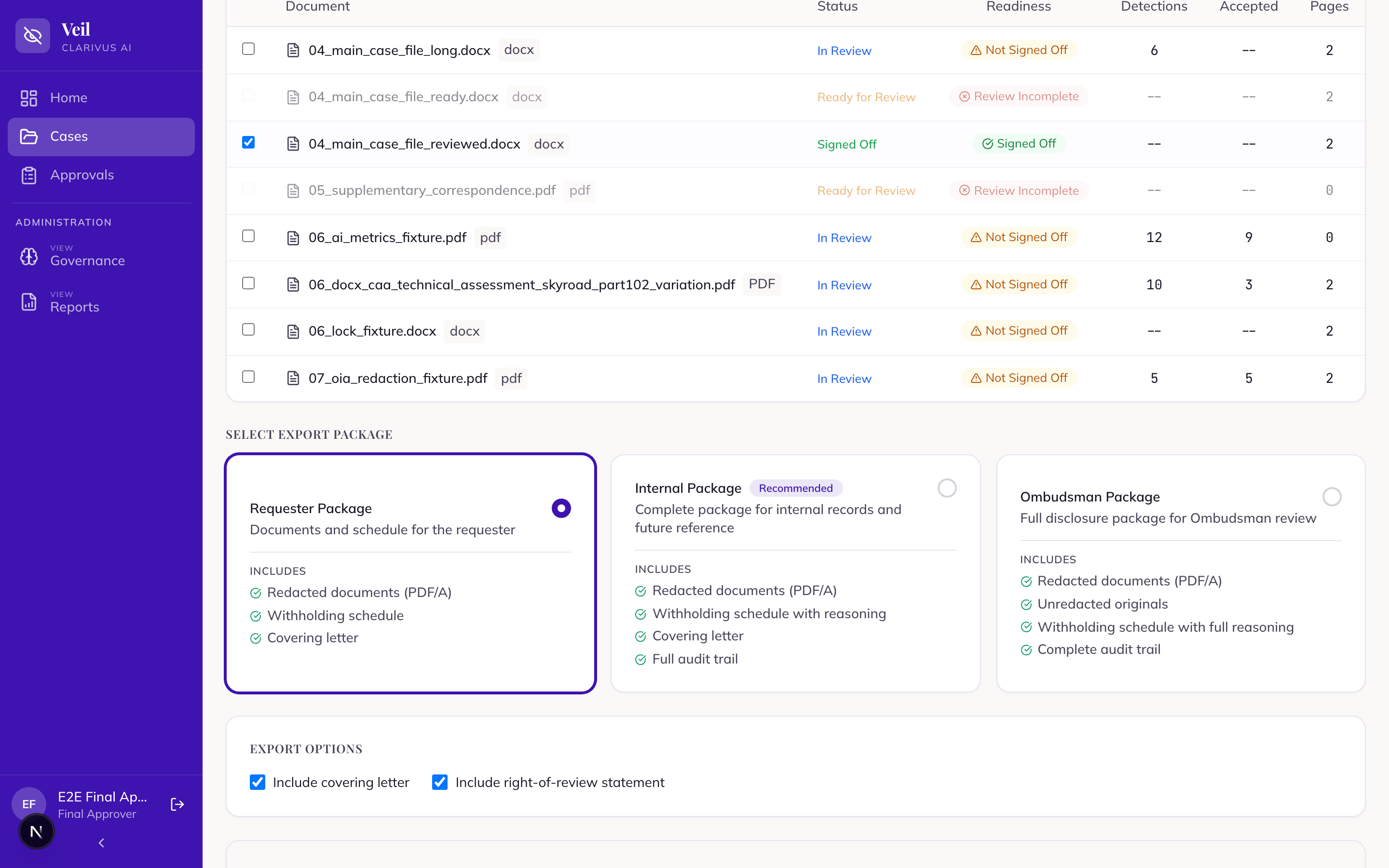
On the case’s Documents tab, tick documents (or “Select all documents”) to reveal the bulk-action bar. “Sign Off Selected” gives final sign-off to several reviewed documents together (Final Approver / Lead).
4. Case attestation on Finalise & Close
Per-document approval is not the end. At the case level, on the “Finalise & Close” screen, the assigned approver completes the “Final sign-off” panel:
- Choose the “Disclosure outcome” — “Granted in full”, “Granted in part”, or “Refused”.
- Press “Attest case complete”
The attestation is the formal statement that the disclosure decision is made and the case is complete. It matters mechanically too: generating an external package (Requester or Ombudsman) requires the case to be fully attested (and the agency name to be set) — without it, the export is blocked with an explanatory message.
After attestation, the Lead handles the terminal steps: “Mark as released” under “Release for disclosure” (which freezes the case and all its documents and stamps the disclosure date), then “Close & archive”.
5. Your export-package rights
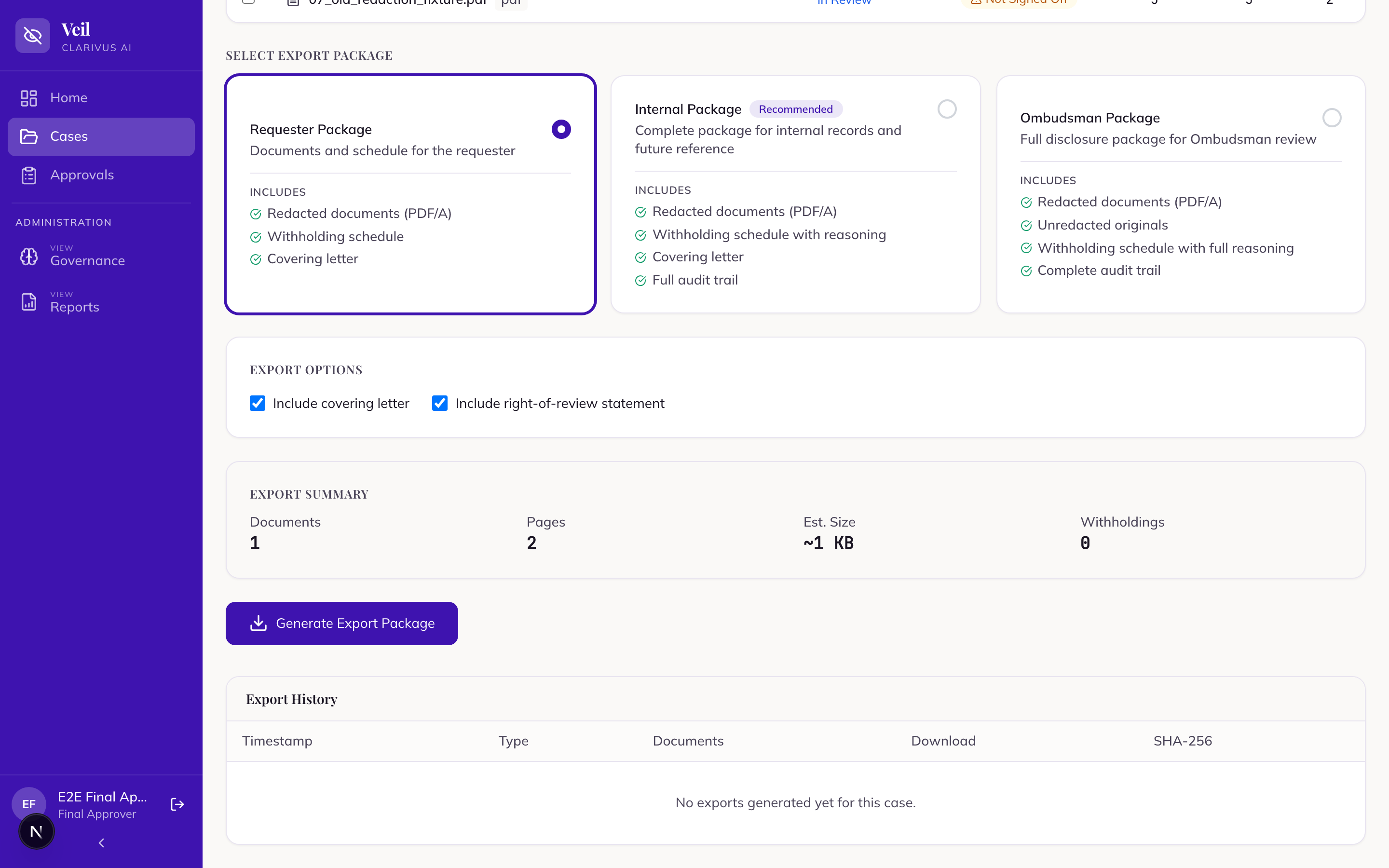
The Final Approver can produce all three packages:
- “Requester Package” — the only package screened for external release.
- “Internal Package” — adds the audit trail, chain of custody, and verification report.
- “Ombudsman Package” — the full disclosure file, including the unredacted originals. Only the Final Approver and the Lead can produce it.
6. Responsibility framing — verify before release
Reference: export & verification · FAQ: an export is blocked
Your sign-off carries the release. Three disciplines:
Verify before release. During export you will see “Verifying redactions are permanent...”. Check “Document Readiness” first — only “Signed off — ready to export” documents export cleanly; readiness badges also flag “Not Signed Off”, “Missing Grounds”, and “Review Incomplete”. When the package generates, a SHA-256 integrity hash is shown and it appears in “Export History”.
The system fails closed — respect it.
- A blocked external export shows the “Export Failed” card with the reason; nothing is assembled or downloadable. Fix the flagged documents and regenerate. (An “unlocatable” detection is reported but does not itself block the export — the blockers are a found leak, an unavailable verifier, or a redaction exception.)
- Internal packages still generate, but each document’s true status is shown honestly — never relabelled “passed”. On screen the per-document list shows “PASSED”, “LEAK-FOUND”, “UNVERIFIED”, or “EXCEPTION” (the document failed to redact and is not included), plus “WITHHELD IN FULL” for a deliberately excluded whole-document withholding (not a failure).
Never bypass a block. Do not override or work around a blocked export to force a release, and do not “release” by any route other than a verified “Requester Package”. Redaction at export is permanent — the withheld text is destroyed, not hidden — but that guarantee only holds for a package that passed verification. If a document cannot be verified clean, the answer is to fix it, not to ship it.
Hands-on exercise
On the demo instance, using a case whose documents are in “Reviewed (Initial)”:
- On “Home”, find “Approval queue — by deadline risk” and confirm it lists work awaiting your sign-off across departments (org-wide scope). Note that the rail’s “Approvals” item opens the shared queue page of documents in active review.
- Open one document, audit its decisions, then press “Final Approval” → “Confirm Approval”. Confirm the badge reads “Signed Off” and try to change a detection — observe that detections are locked.
- On the Documents tab, select the two remaining reviewed documents and use “Sign Off Selected”, having checked each first.
- On “Finalise & Close”, review “Document Readiness”, then complete the “Final sign-off” panel: choose “Granted in part” as the “Disclosure outcome” and press “Attest case complete”.
- Select the documents, choose “Requester Package”, and press “Generate Export Package”. Watch “Verifying redactions are permanent...”, then “Download Package” and note the SHA-256 in “Export History”.
- Ask your trainer to load the prepared “leaky” case; attempt an external export and observe the “Export Failed” card. Identify the flagged document and explain — without doing it — what would be needed before this case could release.
- Generate an “Ombudsman Package” on the clean case and state, to your trainer, who is allowed to receive it.
Knowledge check
Quick-reference card
| Task | Where / label |
|---|---|
| Your work queue | “Home” → “Approval queue — by deadline risk”; the rail’s “Approvals” item (relabelled “My Queue”) opens the shared active-review queue — org-wide scope |
| Approve one document | “Final Approval” → “Confirm Approval” → “Signed Off” (locked; “Detections are locked after final approval”) |
| Endorsement-required case | Sign-off needs “Endorsed” first — refusal: “Cannot sign off: this case requires senior endorsement…” |
| Approve several | Documents tab → “Sign Off Selected” — locks all selected at once; check each first |
| Wrong before approval? | “Request Changes” → “Send Back” (returns to “In Review”) |
| Wrong after approval? | “Send back” on “Finalise & Close” — returns to “In Review”, unlocked; resets the attestation round |
| Case attestation | “Finalise & Close” → “Final sign-off” → “Disclosure outcome” (“Granted in full” / “Granted in part” / “Refused”) → “Attest case complete” |
| Export gate | External packages need full attestation + agency name set |
| Your package rights | “Requester Package”, “Internal Package”, “Ombudsman Package” (unredacted originals — never external) |
| Readiness badges | “Signed Off”, “Not Signed Off”, “Missing Grounds”, “Review Incomplete” |
| Verification | “Verifying redactions are permanent...”; statuses “PASSED” / “LEAK-FOUND” / “UNVERIFIED” / “EXCEPTION” (+ “WITHHELD IN FULL”, not a failure) |
| Blocked export | “Export Failed” — fix flagged documents and regenerate; never bypass the block |