Module 03 — The Senior Reviewer
Team leaders, senior advisors, and subject-matter experts who quality-check first-pass review and make the harder withholding calls · 30–40 minutes · Prerequisites: Module 00 — Foundation and Module 02 — The Reviewer (this module covers only what is added at the senior tier)
In a hurry? Jump to the quick-reference card or the knowledge check — or print the all-roles reference.
Learning objectives
By the end of this module you can:
- Quality-check another reviewer’s decisions and send a document back with “Request Changes” → “Send Back”.
- State precisely what a Senior Reviewer cannot do — and why final sign-off is a separate role.
- Make disclosure decisions, including withholding a document in full where your regime allows it.
- Use the senior-tier tools on the “Bulk review” page: the “Auto-accept high-confidence detections” sweep, “Auto-clear structured PII (emails, phone numbers, IDs)”, and “Hide everywhere” in “Review by reach”.
- Compare version snapshots to see exactly what changed between review milestones.
1. What changes at this tier
Everything from Module 02 still applies — you can open documents, decide detections, assign grounds, and sign off a first-pass review. On top of that, the Senior Reviewer is the quality-check tier: you review decisions, not just documents. Your visibility remains department-scoped unless it has been widened, and every action is still authorised by the server against your role and department.
You also gain a package right: a Senior Reviewer can produce the “Internal Package” as well as the “Requester Package” (the “Ombudsman Package” stays with the Final Approver and the Lead).
2. Reviewing others’ decisions
Open a document in “Reviewed (Initial)” and work the “Detections” panel as an auditor:
- Check each “redacted” and “kept visible” decision against the content and its ground. Use the card’s “Reasoning”, “AI Explanation”, “Public Interest Consideration”, and “Change History” to see how the decision was reached.
- Pay particular attention to [REVIEW REQUIRED] types (legal privilege, safety, law enforcement) and to any detections the reviewer left undecided at sign-off — those are escalated to you for a senior decision.
- Middle-section grounds require a public-interest test — satisfy yourself the balancing actually holds, not just that a ground is attached.
3. Request Changes → Send Back
When a document is not right:
- Press “Request Changes”
- Confirm with “Send Back” adding a reason (optional, but always write one — it goes to the reviewer and saves a conversation).
- The document returns to “In Review” and reappears in the reviewer’s queue.
“Request Changes” → “Send Back” works on a document at “Reviewed (Initial)” — before final approval. But final approval is not the end of the road either: while a document is “Signed Off” its detections are locked, and a Senior Reviewer, Final Approver or Lead can still “Send back” that signed-off document from “Finalise & Close” — “Send this signed-off document back for re-redaction (resets the attestation round)”. It returns to “In Review”, unlocked, and must pass sign-off again; the case attestation round resets so approvers must re-attest. This is the supervisory recovery path for a problem found after sign-off — still raise problems as early as you can.
Endorsing a document — when a case requires it
Some cases carry a senior-endorsement requirement (the Lead turns it on per case — Module 01). On those cases a document cannot go straight from “Reviewed (Initial)” to final sign-off: a senior (Senior Reviewer, Final Approver or Lead) must first endorse it.
- Open the reviewed document and press “Endorse”, then confirm with “Confirm Endorsement” — “This records your senior concurrence with the redaction decisions on this document and sends it for final approval. This action will be recorded in the audit trail.”
- The document moves from “Reviewed — Awaiting Endorsement” to “Endorsed” (“Endorsed — Awaiting Final Approval” on the toolbar); only then can a Final Approver sign it off.
- An endorsement never attests content the endorser did not see: any detection change after endorsement — a decision, a ground edit, a new manual detection — voids the endorsement automatically and regresses the document (to “In Review” if a detection is pending again, otherwise “Reviewed (Initial)”). It must then be endorsed afresh.
- If the same person endorses and later signs off, Veil notes it: “You endorsed this document — the audit record will note the sign-off and endorsement came from the same person.”
4. What you cannot do
- No final sign-off. The “Final Approval” action belongs to the Final Approver and the Lead. This is deliberate separation of duties: the person who quality-checks the review is not the person who authorises release.
- No case creation or administration, no deadline setting or extension, no document deletion — those are the Lead’s.
- No “Ombudsman Package” — on the export screen a package your role cannot produce is disabled with “Your role cannot emit this package type”.
5. Disclosure decisions
The senior tier makes the formal disclosure calls — including withholding a document in full rather than span-by-span.
Where available (Senior Reviewer / Final Approver / Lead):
- On the case’s Documents tab, select documents and choose “Mark as PE”; the “Show PE only” chip filters the list to them.
- In a public-excluded document’s review screen, the card offers “Apply withhold in full”; its confirm dialog warns: “The entire document will be withheld under LGOIMA s48 — no per-span review or partial release.”
- The decision is reversible (“Revert to per-span review”) while the document is still in review, and locked once signed off.
6. Bulk tools at the senior tier — the “Bulk review” page
Reference: bulk review in the feature reference
For large requests, open the “Bulk review” page with “Bulk Review” from the Documents tab. Its promise sits under the title: “Apply one redaction decision across many documents at once — highest-reach detections first.” A scope chip shows what you are reviewing (for example “Reviewing all {N} documents”, or “Reviewing {N} of {M} documents · limited to your department”), and a case-wide meter tracks “{N} of {M} detections cleared” with “{N} left to review”. The page works in three numbered, collapsible steps:
Step 1 — “Auto-accept high-confidence detections”
(Lead / Senior Reviewer — the apply button is hidden from other roles, who see “Auto-accepting by confidence is a senior-reviewer action.”)
Set the “Confidence threshold” slider (tick shortcuts at 0/50/70/85/90/95/100; default 85%). Three tiles preview the effect live: “auto-accept above {X}%”, “held for manual review”, and “documents affected”. Press “Show the {N} detections this will redact” to see the literal released result — the entries closest to the threshold first, each untickable to keep it visible — then commit with “Auto-accept {N} above {X}%”. Each accepted detection keeps its own suggested ground and updates the withholding schedule.
Step 2 — “Auto-clear structured PII (emails, phone numbers, IDs)”
(Senior Reviewer / Final Approver / Lead — others see “Clearing structured PII case-wide is a senior-reviewer action.”)
One chip per structured identifier type with a live count — “Redact all phone numbers”, “Redact all email addresses”, “Redact all IRD numbers”, and so on (addresses, bank account numbers, passport numbers, vehicle registrations, NHI numbers). One press decides every pending detection of that type case-wide. This sweep is deliberately fenced to structured PII: as the page puts it, “Names, commercial information and legal grounds aren’t offered here” — those depend on who and why, so they route to Step 3. The fence is enforced server-side, not just in the UI.
Step 3 — “Review by reach”
(open to every case participant; the assignment and department rules still apply)
Veil groups repeated values into entity groups — most-repeated first; one-off detections are reviewed in the document itself, not here. Each card shows the value, what it looks like (“Looks like a person’s name”), a confidence band (“High confidence” / “Medium confidence” / “Low confidence”), and its reach: “appears {N} times” “across {N} documents”. A preview shows “If hidden, this is what’s released” with the withholding ground, revealable with “Reveal original”. Filter with “Search entities…” and the type chips. Three moves per card:
- “Hide everywhere” — accept the whole group case-wide under its ground (Senior Reviewer / Final Approver / Lead; only shown when the group carries a determinable ground).
- “Look first” — open the first affected document for per-occurrence review when context matters.
- “Not sensitive” — reject the group: it stays visible in the release.
A decided card reads “Hidden in {N} documents” or “Kept visible — not sensitive”, with “Change” to clear the decision. After any batch action a banner offers “Review these {N}” and “Undo this batch”. When “{N} detections still need a decision” reaches zero, “Continue to sign-off” unlocks.
7. Custom detection rules
Senior Reviewers share the “Custom Rules” screen with the Lead — agency-specific keywords, patterns, and entities mapped to withholding grounds, running alongside the AI. They are detection rules, not redaction rules: a match becomes an ordinary detection for a person to decide, and only Active rules run. The full walkthrough is in Module 01; as the tier that sees recurring patterns across reviews, you are often best placed to propose and author them.
8. Comparing version snapshots
Reference: version snapshots in the feature reference
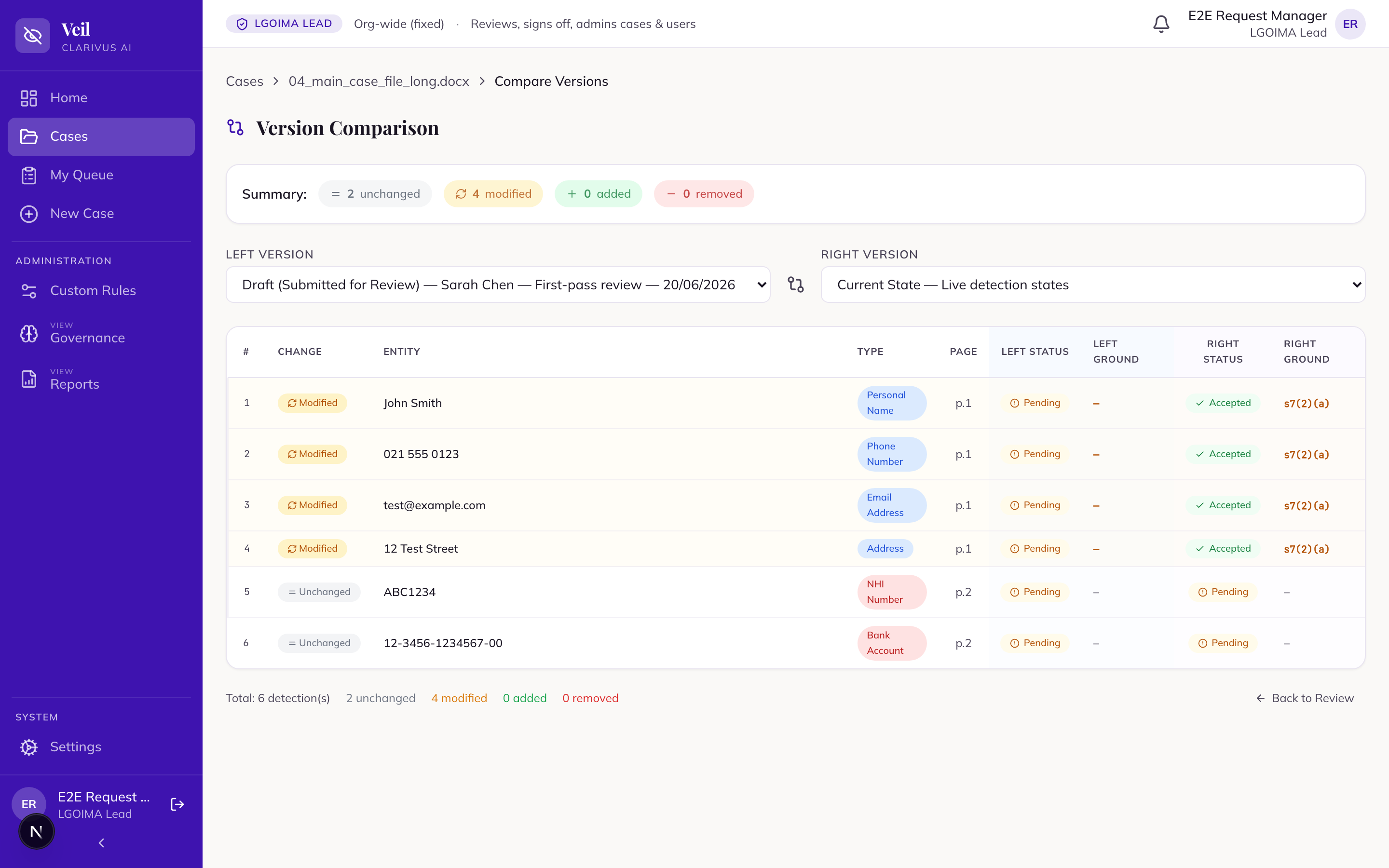
Veil snapshots a document’s redaction decisions at each milestone, so you can see exactly what changed — ideal for checking a document that has come back after a send-back.
- Open “Compare versions” from the ⋯ (More) menu on the review toolbar. The item appears once the document has reached “Reviewed (Initial)” (or later — endorsed, signed off, released); during first-pass review it is absent, because no snapshot exists yet.
- Choose a “Left Version” and “Right Version” — any snapshot or “Current State”. Snapshots are labelled “Draft (Submitted for Review)” and “Final (Signed Off)”.
- Each detection is marked “Added”, “Removed”, “Modified”, or “Unchanged”, with “Left Ground” / “Right Ground” columns so a changed statutory ground stands out.
- The “Summary:” pills (unchanged / modified / added / removed) filter the table.
Hands-on exercise
On the demo instance, using a case with documents already in “Reviewed (Initial)”:
- Open a reviewed document and audit three decisions using “Reasoning” and “Change History”. Find the planted error (a mis-grounded redaction).
- Press “Request Changes” → “Send Back” with a one-line reason. Confirm the badge returns to “In Review”.
- After your trainer’s “reviewer” fixes and re-signs it, open “Compare versions” from the ⋯ menu, set “Left Version” to “Draft (Submitted for Review)” and “Right Version” to “Current State”, and use the “Summary:” pills to isolate the “Modified” detection. Check its “Left Ground” / “Right Ground”.
- From the Documents tab, open “Bulk Review”. In “Review by reach”, pick an entity group spanning several documents, press “Reveal original” to check the value, then “Hide everywhere”. Find a group showing “This needs a closer look.” and explain why it only offers “Review these {N} individually”.
- In “Auto-accept high-confidence detections”, set the “Confidence threshold” slider, read the “auto-accept above {X}%” / “held for manual review” / “documents affected” tiles, open “Show the {N} detections this will redact”, then press “Auto-accept {N} above {X}%” — and practise “Undo this batch” from the banner. Try one “Redact all phone numbers” chip in “Auto-clear structured PII”.
- (LGOIMA demo instances only) Select a document, choose “Mark as PE”, open it, and press “Apply withhold in full”; then use “Revert to per-span review” to undo it.
- Attempt a final sign-off and observe that “Final Approval” is not available to your role.
Knowledge check
Quick-reference card
| Task | Where / label |
|---|---|
| Send a document back (pre-approval) | “Request Changes” → “Send Back” (returns to “In Review”; add a reason) |
| Send back a signed-off document | “Send back” on “Finalise & Close” — returns to “In Review”, unlocked; resets the attestation round |
| Endorse (endorsement-required cases) | “Endorse” → “Confirm Endorsement” — “Reviewed (Initial)” → “Endorsed”; any detection change voids it |
| What you cannot do | “Final Approval”; case admin; “Ombudsman Package” (“Your role cannot emit this package type”) |
| Withhold in full (LGOIMA only) | “Mark as PE” → “Apply withhold in full”; undo with “Revert to per-span review”; filter with “Show PE only” |
| Structured-PII sweep, case-wide | “Auto-clear structured PII (emails, phone numbers, IDs)” → “Redact all …” chips (Senior Reviewer and above) |
| Confidence sweep | “Auto-accept high-confidence detections” — “Confidence threshold” slider → “Auto-accept {N} above {X}%” (Lead / Senior Reviewer; preview with “Show the {N} detections this will redact” first) |
| Entity groups, case-wide | “Review by reach” — “Hide everywhere” / “Look first” / “Not sensitive”; undo with “Undo this batch” |
| Bulk exclusions | Scrutiny types never swept — “held for manual review” / “This needs a closer look.” → decided individually |
| Custom rules | Shared with the Lead — “Custom Rules” (detection, not redaction; only Active rules run) |
| See what changed | “Compare versions” (⋯ menu; from “Reviewed (Initial)” onward) — “Left Version” / “Right Version”, “Added” / “Removed” / “Modified” / “Unchanged” |
| Your package rights | “Requester Package” + “Internal Package” |