Module 00 — Foundation: How Veil Works
All new users · 45–60 minutes (including the hands-on exercise) · no prerequisites
In a hurry? Jump to the quick-reference card or the knowledge check — or print the all-roles reference.
Learning objectives
By the end of this module you can:
- Explain what Veil is, the problem it solves, and why it is more than a redaction tool.
- Distinguish the two regimes (LGOIMA and OIA) and know which section references apply to your instance.
- Describe the three families of withholding grounds and when a public-interest test applies.
- Follow a detection from pending to a decision, and a document through its review states.
- Name the five roles, what each can do, and how visibility scope differs from role.
- List the supported upload formats and the format warnings that protect a release.
- Identify the three export packages and state which one may leave the building.
- Recite the non-negotiable safety essentials before touching a live case.
What Veil is and the problem it solves
Veil is an AI-assisted disclosure workflow platform for official-information requests in New Zealand. It manages the whole lifecycle of a request under the Act: intake → automated detection → tiered human review → permanent redaction → export package → audit trail. It is not merely a redaction tool.
The problem: releasing official information safely is slow, manual, and error-prone — one missed name can breach privacy. Reviewers must apply the correct statutory withholding ground to each piece of withheld content, and prove they did. A response is only defensible if there is an immutable record of who decided what, and when. Veil makes disclosures faster, safer, and auditable — and blocks an external release that cannot be verified clean.
AI detection is an optional cloud feature your administrator configures — pattern detection still runs without it. OCR is also administrator-configured, but processing new uploads depends on it (see Supported upload formats); the review, redaction, export, and audit workflow for already-processed documents always works.
The two regimes
Veil runs per organisation in exactly one regime, chosen at activation. It cannot be changed in Settings.
- LGOIMA instances cite the Local Government Official Information and Meetings Act 1987; OIA instances cite the Official Information Act 1982.
- The oversight body is the Ombudsman in both regimes — only the section of the complaint right differs.
- Everything else — the pipeline, review screens, and export packages — works the same way. What differs is the wording, the grounds list, and one LGOIMA-only feature: the s 48 public-excluded withhold-in-full workflow (covered in Module 03), which does not appear on OIA instances.
This training, like the user guide, calls the request manager “the Lead” and uses “the Act” for both regimes.
Withholding grounds
A withholding ground is the section of the Act that justifies keeping a piece of information back. There are three families:
- Section 6 — conclusive. If the ground applies, the information must be withheld. No public-interest balancing.
- The middle section — public-interest test. These grounds only justify withholding if they are not outweighed by the public interest in release.
- The refusal section — covers refusing a request outright (for example, information not held).
“Section 6 — Conclusive” is labelled the same in both — but the ground lists differ slightly: the OIA list additionally includes s 6(e) (the economy of New Zealand).
The most common grounds map directly across regimes:
| Ground | LGOIMA | OIA |
|---|---|---|
| Privacy of a natural person | s 7(2)(a) | s 9(2)(a) |
| Legal professional privilege | s 7(2)(g) | s 9(2)(h) |
| Free and frank opinions | s 7(2)(f)(i) | s 9(2)(g)(i) |
| Commercial position | s 7(2)(b)(ii) | s 9(2)(b)(ii) |
Your instance always shows the grounds and citations for your regime — you never need to translate.
Detections and decisions
- A detection is one piece of potentially-withholdable content Veil has flagged — a name, a phone number, a privileged sentence.
- Every detection starts pending. Veil never decides for you; nothing is pre-redacted.
- You make a decision on each: “Redact” (withhold it) or “Don’t redact — keep visible”.
- The detection card shows the decision state as “to decide”, “redacted”, or “kept visible”.
- Every redacted detection needs a withholding ground before the case can be exported. Veil pre-fills a suggested ground for most types; you can change it with “Edit grounds”.
Detections come from three sources: pattern detection of NZ personal identifiers (always runs), the AI layer (a configured cloud feature — contextual content such as legal privilege and commercial sensitivity), and custom rules your agency defines. All three produce ordinary pending detections for a person to decide.
Document review states
Each document moves through a fixed set of states (the label you see is in bold):
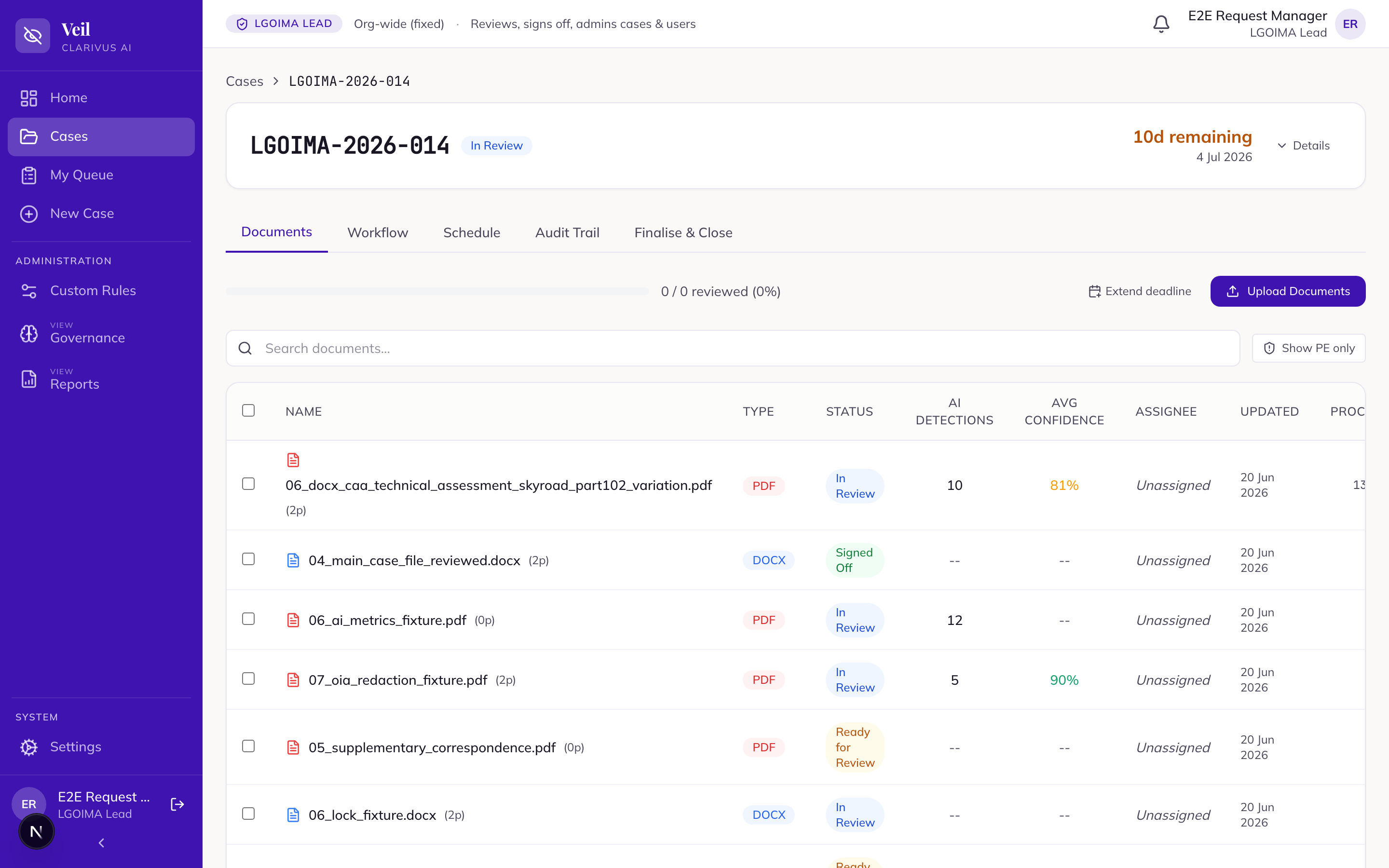
- “Ready for Review” → a reviewer opens it → “In Review”.
- All detections decided → “Reviewed (Initial)” (set automatically).
- A senior reviewer can send it back → returns to “In Review”.
- On cases that require senior endorsement, a senior’s endorsement moves it to “Endorsed” before final sign-off (Module 03 covers this).
- A final approver signs off → “Signed Off” (detections locked); at release → “Released”.
- A document excluded from review with “Mark Excluded” shows “Excluded”.
- A failed document shows “Error” with a plain-English reason.
While a document is “Signed Off” its detections are locked — any change is refused with “This document is signed off — use Send back to re-open it for changes.” The lock is deliberate, but it is not a dead end: a Senior Reviewer, Final Approver or Lead can “Send back” a signed-off document from “Finalise & Close”, which returns it — and only it — to “In Review” and unlocks its detections for re-work. That send-back resets the case attestation round, and the document must pass sign-off again before export. Raise problems as early as you can, but know the recovery path exists; only a released document (or a released/closed case) can no longer be reopened this way.
The five roles and visibility scope
Five roles exist:
- Reviewer — reviews and redacts the documents assigned to them.
- Senior Reviewer — reviews decisions, can request changes, and makes disclosure decisions; does not give final sign-off.
- Final Approver — reviews, redacts, and gives the final sign-off.
- The Lead — creates cases, assigns work, and can also review and sign off.
- Administrator — system configuration only; has no access to cases.
Key permission boundaries:
- Accept / reject / add detections, assign grounds — any assigned case participant (Reviewer and above).
- Request changes / send back — Senior Reviewer, Final Approver, Lead.
- Final sign-off on a document — Final Approver or Lead only.
- Create a case, set deadlines, configure the workflow, delete a document — the Lead only.
- Final case attestation — an assigned Final Approver (or an assigned Lead) attests; the Lead releases or closes.
Visibility is set by scope, separately from role:
- Department scope — you see only cases that include your department.
- Org-wide scope — you see every case (the Lead and Final Approver are org-wide).
- Within a shared multi-department case, documents are further scoped to the department that owns them.
- The Administrator has no case access at all.
Permissions are enforced by the server, not the screen. Some buttons you cannot use are hidden; others are visible but will be rejected by the server — never assume access from the UI alone; the system re-checks your role on every action.
Supported upload formats
Veil accepts these document types at upload (the dropzone lists them):
- PDF, DOCX, XLSX, PPTX
- Email: EML / MSG (each email’s attachments become their own child documents)
- TXT
Four warnings every user must know:
- .PST email archives and .ZIP folders are not supported. Veil does not expand them — a ZIP is rejected at upload. Export emails as EML or MSG, or unzip the folder, and upload the files individually.
- Standalone image files (PNG, JPG and similar) are not accepted — they are rejected at upload with “Unsupported file type — supported: PDF, Word, Excel, PowerPoint, email (.eml/.msg), text.” Scanned documents are fine as PDFs: a scanned PDF is read through OCR like any other.
- Audio and video files are not screened. They may upload via drag-and-drop, but in a standard deployment Veil does not transcribe, detect, or redact them — never treat a media file as reviewed or safe to release unless your administrator confirms media transcription is enabled.
- Every upload needs OCR, a cloud feature your administrator configures. Veil converts each document (including DOCX, XLSX, TXT, EML, and MSG) to a canonical PDF and reads it through the OCR service — so if OCR is unavailable, no document can be processed; uploads go to “Error” until the service recovers.
Sensitive (New Zealand-only) processing. The upload screen has a checkbox — “Sensitive — process in New Zealand only (no AI)” — for material that must not leave the country. Documents uploaded with it on are processed entirely within New Zealand and are never sent to the AI service: detection uses pattern-matching, your custom rules and manual review only, so automated recall is lower and those documents need extra care in review. It supports born-digital files only (Word, text-based PDFs, email) — a scanned document can’t be processed in this mode and will go to “Error” rather than silently passing unread. Each such document carries a “Sensitive — in-region, no AI” badge through the queue and review screens. Full detail: Sensitive mode in the feature reference.
The disclosure lifecycle at a glance
Nine steps, from request to closed case. Your role module goes deep on the steps you own; here is the shape of the whole journey:
- Create the request the Lead uses “Log a new request”; Veil assigns the “Reference” and the “Statutory deadline” automatically.
- Upload documents on “Document Ingestion”, drag and drop (or “Import from SharePoint”, where your organisation has enabled Microsoft 365 integration).
- Automated processing validate, extract text (OCR where needed), pattern detection, AI detection; the document reaches “Ready for Review”.
- Review detections decide each one: “Redact” or “Don’t redact — keep visible”.
- Assign withholding grounds every redacted detection gets a ground via “Edit grounds”.
- Sign off and senior review the reviewer presses “Sign Off”; a senior reviewer can “Request Changes” → “Send Back”.
- Final approval and attestation “Final Approval” locks each document’s detections; the approver then completes the case-level “Final sign-off” and presses “Attest case complete”.
- Export the package on “Finalise & Close”, choose the package and press “Generate Export Package”; Veil burns in the redactions and verifies they are permanent.
- Release and close the Lead presses “Mark as released” (irreversible), then “Close & archive”.
Finding & reusing past work
When you start a new request, Veil checks whether it — or something like it — has come through before, so you don’t redo work that’s already been done. As you type the request summary, a “Similar requests” panel lists past cases ranked by how closely they match, each badged with its status; the same search is on every case page as “Find Similar”. Matching is by meaning, not just shared words, and it covers every case in the system — which is how you catch the quiet duplicate, where someone else is already working the exact same request. A match is a prompt to look, not an instruction to reuse: open the case and read it before you decide it is the same request.
From a matching case you can reuse work in two ways — attaching its documents into your case (see Module 01 — the Lead), and, where a document is byte-identical to one processed before, letting Veil import its earlier analysis instead of re-running the AI (see Module 02 — the Reviewer). Full walkthrough: Find & reuse past work.
The three export packages at a glance
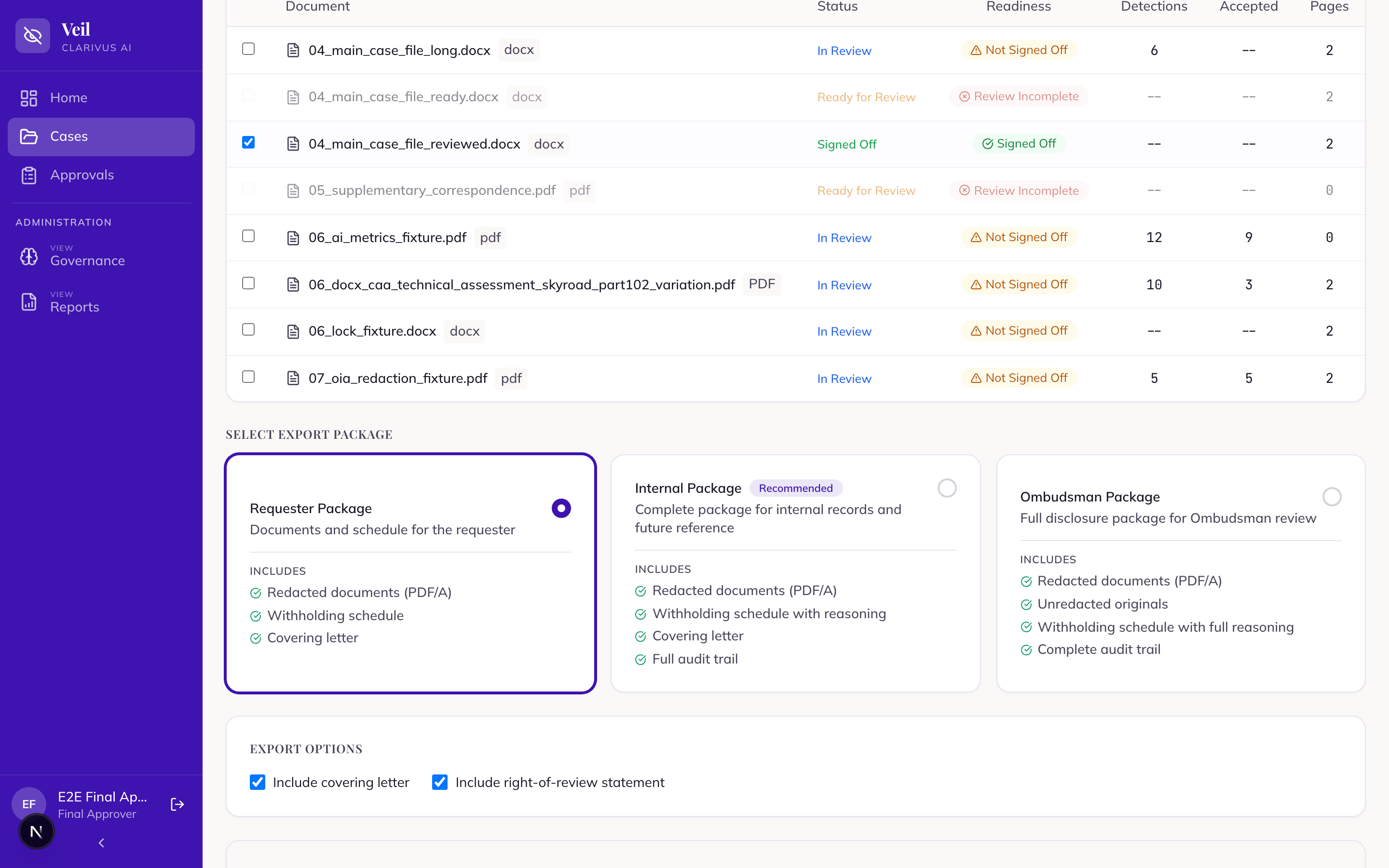
Veil produces exactly three package types, each for a different audience:
- “Requester Package” — what you send to the person who made the request. It is screened: it omits the withheld-text column, reviewer reasoning, and the verification report, and anonymises filenames to
Document_001,Document_002… - “Internal Package” (marked “Recommended”) — for your own records: adds the audit trail, chain of custody, and verification report.
- “Ombudsman Package” — the full disclosure file for an Ombudsman review. It is the only package containing the unredacted originals.
Who can produce each: Requester — Reviewer and above; Internal — Senior Reviewer and above; Ombudsman — Final Approver and Lead only. The Administrator cannot generate any package.
Safety essentials — non-negotiable
Learn these before you touch a live case. They are covered in depth in the Solution Overview — safety by design.
- Redaction is permanent and irreversible. At export, accepted redactions are burned in and flattened — the underlying text is destroyed, not hidden. There is no undo. The in-app “Redacted” preview only covers content visually; permanent redaction happens at export.
- The system fails closed on verification. An external release (Requester or Ombudsman package) is blocked if the automated check finds a leak or cannot run. “Couldn’t verify” is not “clean”. Never override or work around a block.
- Every artefact is a potential leak channel. Withheld content can escape through more than the PDFs — schedules, filenames, previews, and reports can all expose it.
- Only the Requester package is screened for external release. The Ombudsman package contains the unredacted originals; the Internal package contains withheld content. Never send either to a requester.
- The Administrator has no case access. Configuration only — they cannot see cases, review documents, or generate packages.
Hands-on exercise
A guided look around a demo instance. You are looking, not changing — do not press any decision, sign-off, or export buttons.
- Log in to the demo instance with the credentials your trainer provided.
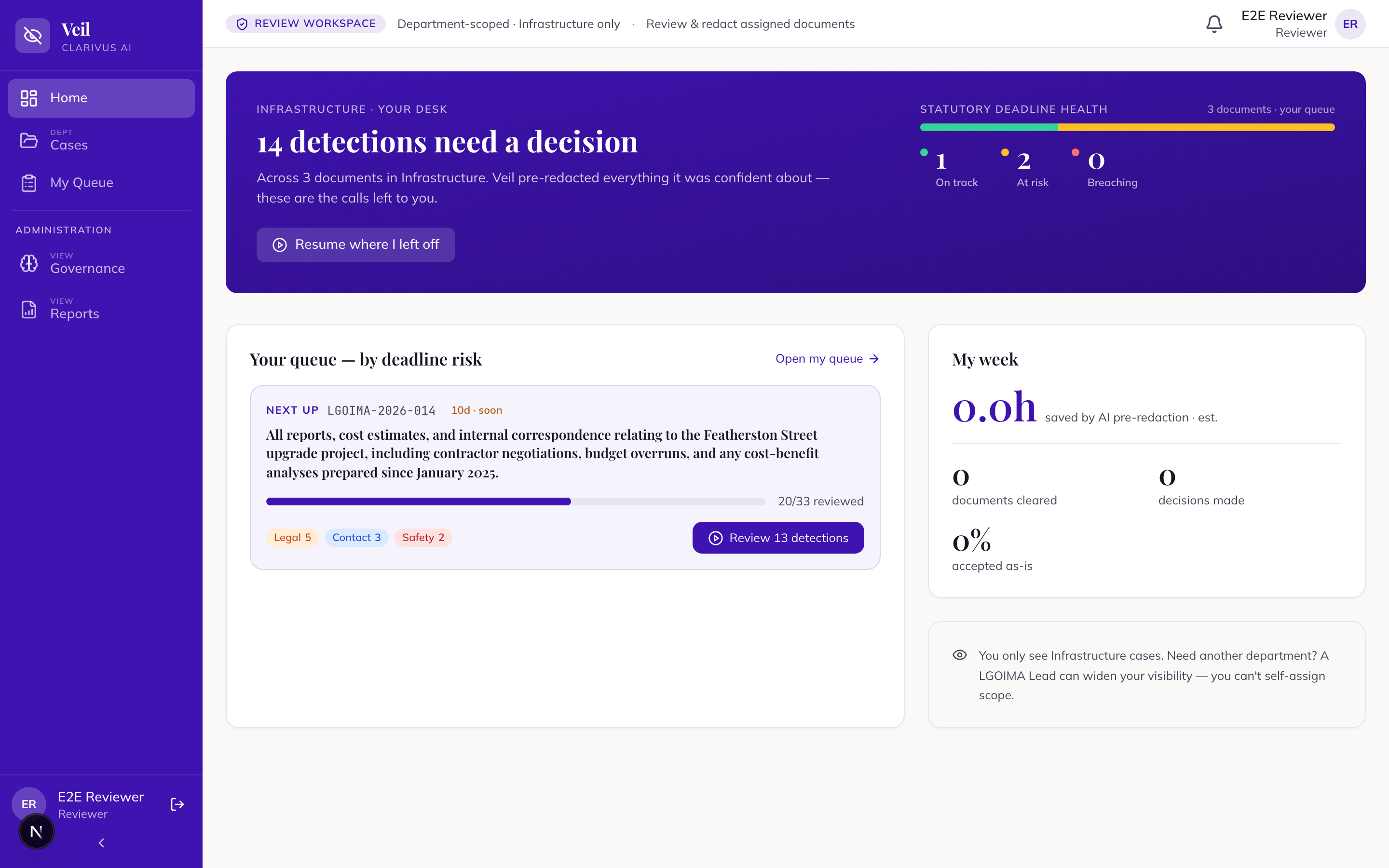
- Check the dashboard on “Home”, find the “Statutory deadline health” panel. Note the three health states — “On track”, “Urgent”, “Overdue” — and check your personal queue below it.
- Browse the cases open “Cases” and note each case’s status label (for example “Ingesting” while documents process, “In Review”, “Ready for Export”).
- Read the badges open one case and look at its Documents tab. Identify each document’s status badge — you should be able to name where each document sits in the review journey (“Ready for Review”, “In Review”, “Reviewed (Initial)”, “Signed Off”).
- Look at detections open one document in Document Review. Find the “Detections” panel on the right and locate one detection card in each decision state you can find: “to decide”, “redacted”, “kept visible”. Do not press “Redact” or “Don’t redact — keep visible”.
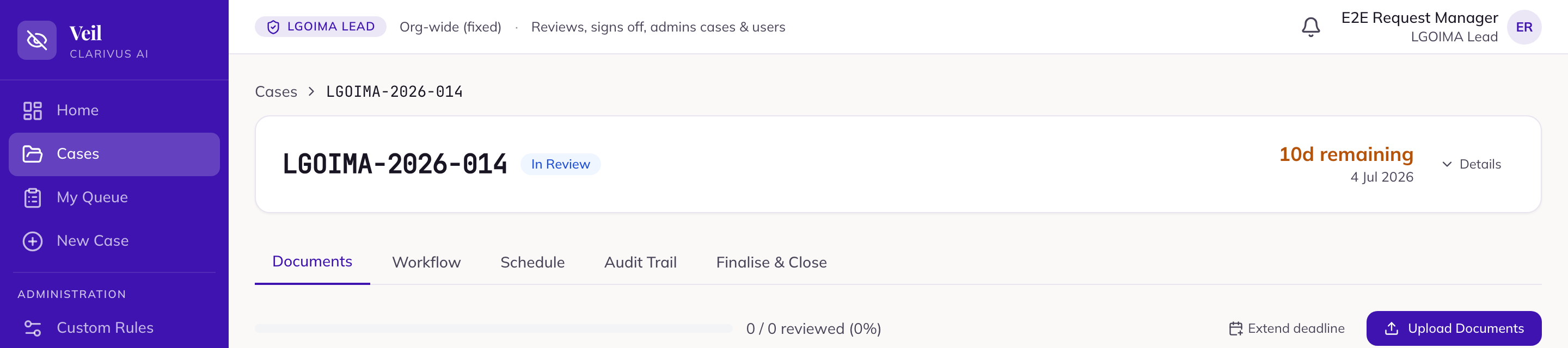
- Relate the rail to your role check the navigation rail: which of “Home”, “Cases”, “My Queue” / “Approvals”, “New Case”, “Custom Rules”, “Governance”, “Reports”, “Settings” can you see? Relate that to your role and scope.
Knowledge check
Quick-reference card
| Fact | Detail |
|---|---|
| Regimes | LGOIMA (local govt) or OIA (central govt) — one per instance, set at activation; wording and grounds differ, workflow the same (plus one LGOIMA-only feature: s 48 public-excluded) |
| Withholding sections | Conclusive: s 6 (both). Public-interest: s 7 (LGOIMA) / s 9 (OIA). Refusal: s 17 (LGOIMA) / s 18 (OIA) |
| Statutory deadline | 20 working days — s 12 (LGOIMA) / s 15 (OIA); assigned automatically at intake |
| Detection decisions | Starts pending → “Redact” or “Don’t redact — keep visible”; redacted items need a ground |
| Document states | “Ready for Review” → “In Review” → “Reviewed (Initial)” → (“Endorsed”, on endorsement-required cases) → “Signed Off” (locked; reversible by “Send back”) → “Released”. Also: “Excluded”, “Error” |
| Roles | Reviewer, Senior Reviewer, Final Approver, Lead, Administrator (no case access) |
| Final sign-off | Final Approver or Lead only — never the Senior Reviewer |
| Visibility | Scope, not role: department or org-wide (Lead and Final Approver are org-wide) |
| Upload formats | PDF, DOCX, XLSX, PPTX, EML/MSG, TXT |
| Format warnings | PST/ZIP and standalone images rejected at upload; audio/video not screened; every upload needs OCR to process |
| Packages | Requester (screened, external), Internal (recommended, records), Ombudsman (includes unredacted originals) |
| Golden rules | Redaction is permanent; verification fails closed; every artefact leaks; only the Requester package leaves the building |