Module 02 — The Reviewer
Front-line reviewers: information officers and team members who work through documents, decide detections, and apply withholding grounds · 60–75 minutes (including the hands-on exercise) · prerequisite: Module 00 — Foundation (key concepts, roles, regimes, and the disclosure lifecycle)
In a hurry? Jump to the quick-reference card or the knowledge check — or print the all-roles reference.
Learning objectives
By the end of this module you can:
- Find your assigned work in “My Queue” and open a document for review.
- Decide every detection on a document using “Redact” or “Don’t redact — keep visible”.
- Use the “Original” / “Redacted” preview correctly — and explain why it is visual only.
- Add manual detections, and use “Change type” and “Edit grounds” on a detection card.
- Assign the correct withholding ground for your regime, with a reviewer note where useful.
- Sign off a document (“Sign Off” → “Submit”) and describe what happens if it is sent back.
- Recognise concurrent-editing warnings and the common troubleshooting situations reviewers meet.
1. Your place in the workflow
You are the first-pass human check. Veil’s automated pipeline finds detections — pieces of potentially-withholdable content such as a name, a phone number, or a privileged sentence — but it never decides anything. Every detection starts pending; nothing is pre-redacted. Your job is to decide each one, attach the legal justification (the withholding ground) to everything you withhold, and sign the document off for senior review.
Your visibility is normally scoped to your own department — you see the cases that include your department, unless an Administrator or the Lead has widened your visibility. Permissions are enforced by the server, not the screen: some buttons you cannot use are hidden, others are visible but will be rejected by the server — the system re-checks your role on every action.
2. My Queue and navigation
As a Reviewer, your left navigation rail shows five items: “Home”, “Cases”, “My Queue”, “Governance”, “Reports”. (“New Case” appears only for the Lead; “Custom Rules” for the Lead and Senior Reviewer; “Settings” for the Lead and the Administrator.)
- “Home” — the dashboard. It shows the “Statutory deadline health” panel (“On track”, “Urgent”, “Overdue”) and your personal queue, so you can see at a glance which cases are under deadline pressure.
- “My Queue” — a per-case worklist, “Sorted by deadline risk”: one card per case (not a flat document list), each showing where the case sits in its lifecycle, a stage summary, and how many of its documents are “awaiting your review”. Cases you can see but that have nothing ready for you yet are greyed with “Not yet ready for your review”. Open a case (or press “Continue review”) to work its documents; with nothing waiting you’ll see “Nothing awaiting your review”. This is where your day starts; check the case’s Documents tab for which documents the Lead has assigned to you.
- “Cases” — the case list; open a case to see its Documents tab, Schedule, and Audit Trail.
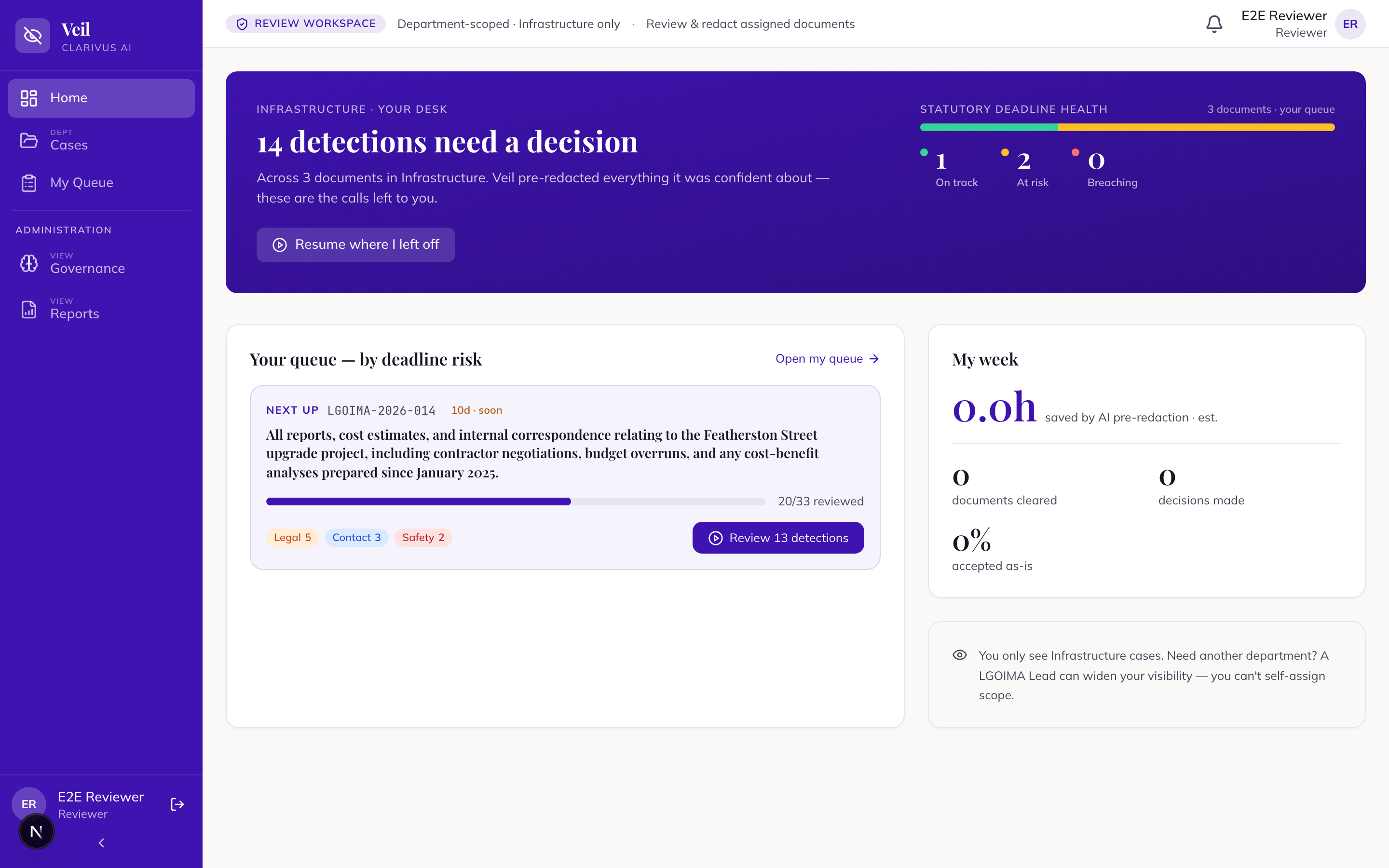
Documents are assigned to you by the Lead using “Assign Reviewer” on the case’s Documents tab. If a case you expect to see is missing, your visibility is probably department-scoped and the case belongs to another team — ask your Lead.
3. Opening a document
Each document carries a status badge. The ones that matter to you:
- “Ready for Review” — processing finished; the document is waiting for a reviewer.
- “In Review” — set automatically when a reviewer opens it.
- “Reviewed (Initial)” — set automatically the moment every detection is decided, or when you press “Sign Off” → “Submit” (undecided detections are then escalated for a senior decision).
- “Signed Off” — final approval given; its detections are locked while it stays signed off (a Senior Reviewer, Final Approver or Lead can still “Send back” from “Finalise & Close”, returning it to “In Review”).
- “Error” — processing failed; see Troubleshooting below.
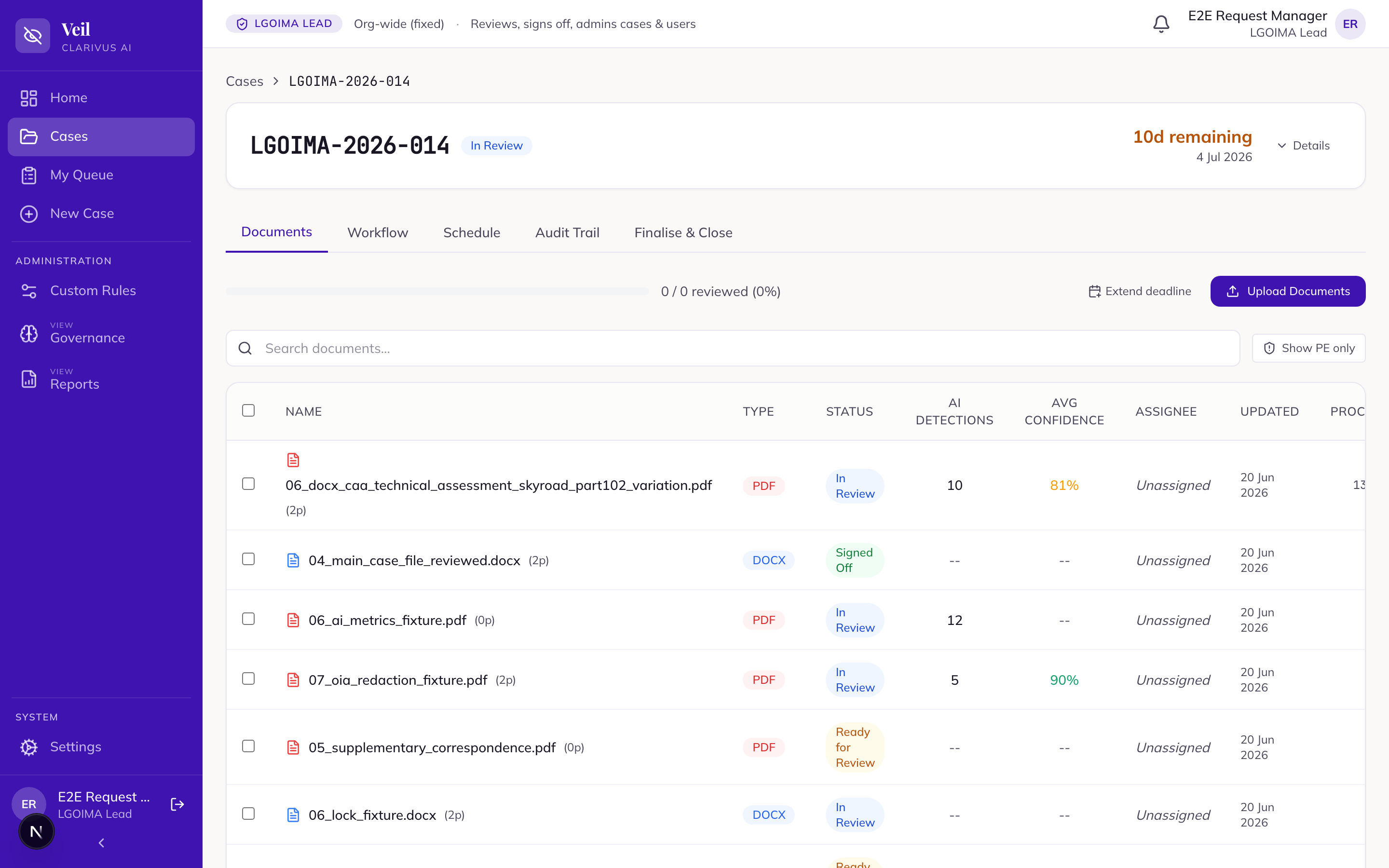
Open a document from “My Queue” or the case’s Documents tab. Opening a “Ready for Review” document moves it to “In Review”.
4. The Document Review screen
Reference: the review screen in the feature reference
Document Review is a split view: the document on the left, the “Detections” panel on the right.
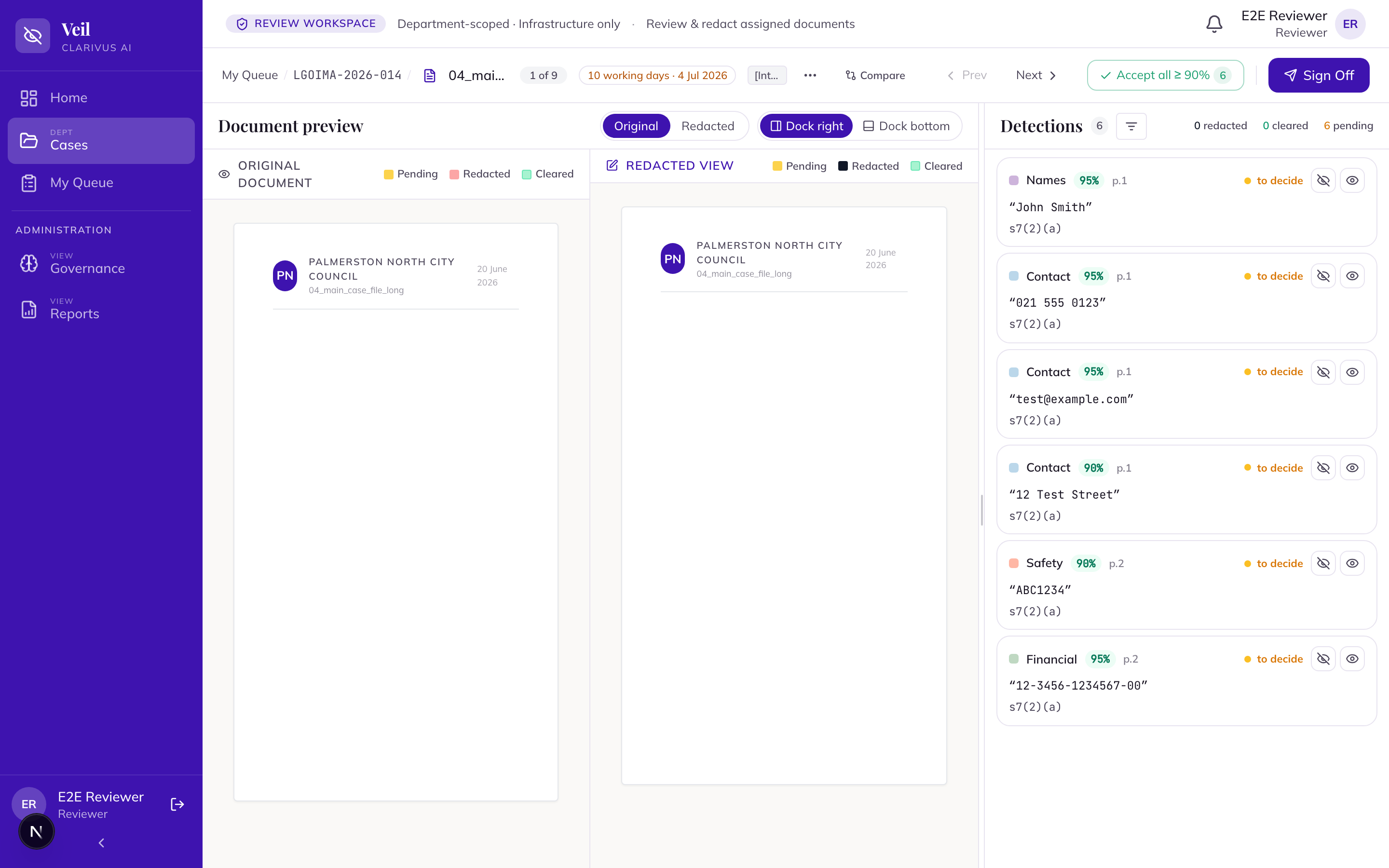
Key controls:
- Decision buttons on each card: “Redact” / “Don’t redact — keep visible”; bulk “Accept all ≥ 90%”.
- Preview toggle: “Original” / “Redacted”.
- Panel filters: “All Detections”, “Personal”, “Commercial”, “Other”.
- Sign-off actions: “Sign Off”, “Request Changes”, “Final Approval” (the last two belong to senior tiers — you will see only what your role can use).
- Card details: “Reasoning”, “AI Explanation”, “Public Interest Consideration”, “Suggested ground”, “Change History”.
5. Deciding each detection
For each detection, choose one of two decisions:
- “Redact” — withhold the content. A redacted detection needs a withholding ground before the case can be exported.
- “Don’t redact — keep visible” — the content is releasable; it stays in the output.
The card shows the decision state as “to decide”, “redacted”, or “kept visible”. Work through the panel until nothing is left “to decide”.
The Original / Redacted preview
Toggle the preview between “Original” and “Redacted” to see the effect of your decisions.
Accept all ≥ 90%
Use “Accept all ≥ 90%” to clear high-confidence detections in bulk — lower-confidence ones stay for hand review. This is a time-saver, not a substitute for judgement: anything it accepts can still be reverted individually, and detections flagged for extra scrutiny should always be decided by hand.
Adding a manual detection
Veil flags what it detects, but a human eye catches context a pattern cannot. You can add a manual detection by selecting text in the document — the new detection gets a type and a ground like any other.
Change type and Edit grounds
On any detection card:
- “Change type” — correct a misclassified detection (for example, a string flagged as a phone number that is actually a file reference, or personal content the AI typed as commercial). The type drives the suggested ground, so fixing the type first usually fixes the ground.
- “Edit grounds” — open the grounds editor to change or set the withholding ground (next section).
Working with imported analysis
This is where a shortcut can quietly become a mistake, so slow down here. When a document you open was imported — because an identical file had already been processed on an earlier case — two things look different, and one thing must not change.
What looks different. The document carries an “Imported” badge, and every detection wears a provenance chip reading “Imported from prior review — needs your fresh judgement”, with the source case reference (a link, if that case is in your scope). You did not do this analysis; a colleague did, on a different request.
What must not change — your judgement. Every imported detection arrives pending. Nothing is accepted, nothing is rejected — including the items the previous reviewer decided either way. Their final ground shows only as a suggestion. Nothing imported is ever pre-decided, because the public-interest test is made per request and per point in time: a person who was fine to name last year may not be this year. You inherit the finding — the machine work of locating and classifying the material — never the decision.
So you work an imported document exactly as any other: decide every detection, set every ground. Veil refuses sign-off while any detection is still pending and tells you how many remain — the same zero-pending rule as always, and your safety net against skimming.
Four things trainees reliably get wrong:
- Treating imported detections as “already handled” and skimming. They are all pending — read each one.
- Expecting a re-saved or re-exported copy to import. Only a byte-identical file matches; near-enough does not, on purpose — a wrong match is worse than none.
- Assuming the previous redactions come across. They never do — you get the original document, not last time’s redacted output.
- Forgetting that emails always process fresh: .eml/.msg carry attachments Veil splits into separate documents, so importing would silently skip them.
Full walkthrough: Find & reuse past work.
6. Assigning withholding grounds
Reference: withholding grounds in the glossary · grounds in the feature reference
Every redacted detection needs a withholding ground before the case can be exported.
- Veil pre-fills a suggested ground for most types — you can change it.
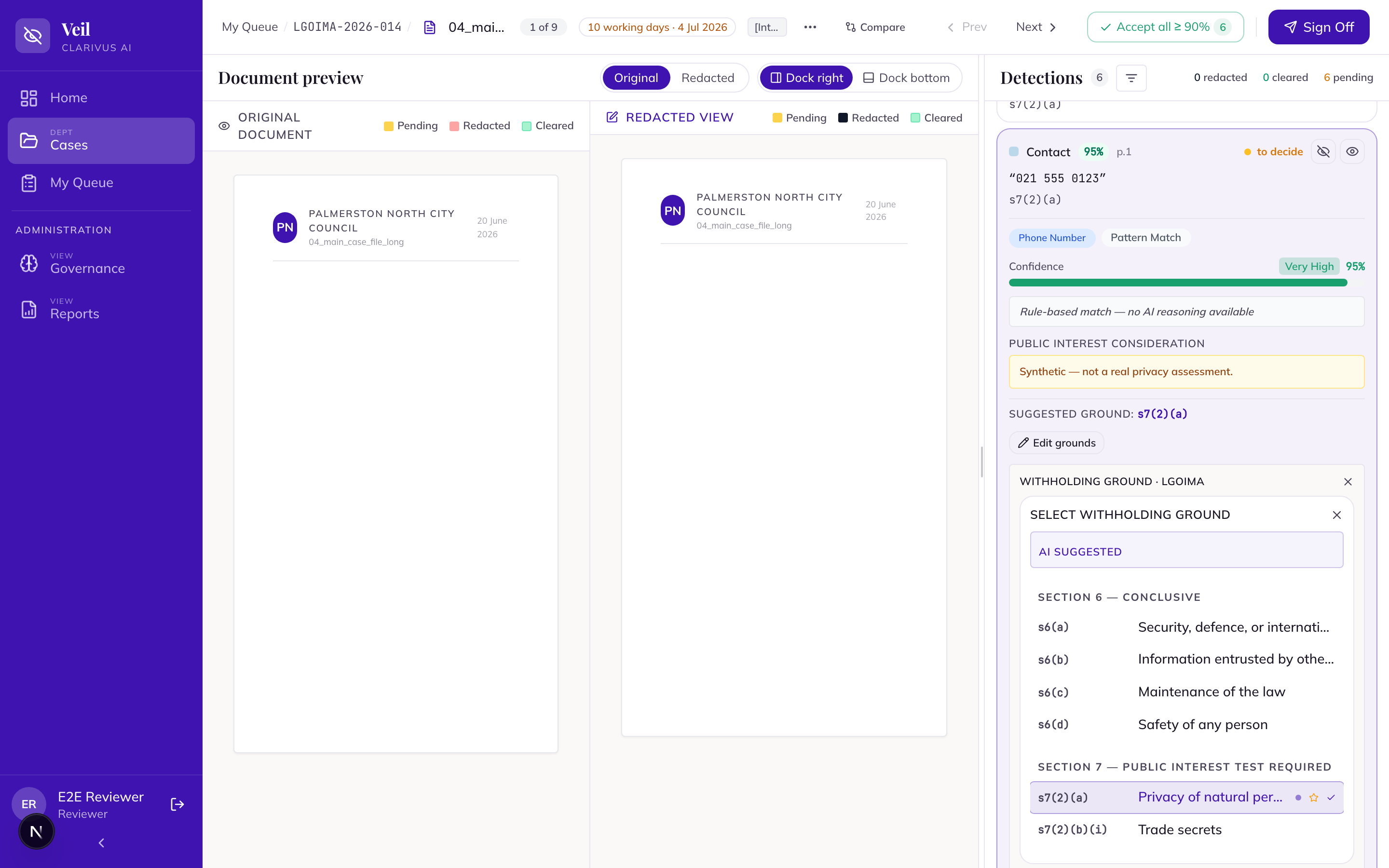
- Use “Edit grounds” → “Select Withholding Ground”; grounds are grouped by section of the Act.
- Add an optional reviewer note — it appears in the withholding schedule, so write it as you would want the requester (or the Ombudsman) to read it.
- Some types — legal privilege, safety, law enforcement — are flagged [REVIEW REQUIRED] for extra scrutiny. Decide these individually and carefully; the case-wide sweeps on the “Bulk review” page exclude them entirely, and this screen’s “Accept all ≥ 90%” button skips them too — they always wait for your individual decision.
The grounds picker is regime-aware:
“Section 6 — Conclusive” is labelled the same in both — but the ground lists differ slightly: the OIA list additionally includes s 6(e) (the economy of New Zealand).
The most common ground you will apply is privacy of a natural person:
Remember the balancing structure: Section 6 grounds are conclusive (no public-interest balancing); the middle section requires a public-interest test — the card’s “Public Interest Consideration” field is where the AI’s suggested balancing appears for you to weigh.
7. Signing off
When every detection on the document is decided:
- Press “Sign Off” from the sign-off action group on the review screen.
- Confirm with “Submit” in the confirmation step.
- The document becomes “Reviewed (Initial)” and moves to the senior-review tier.
Until final approval, the toolbar shows “Signed Off — Awaiting Final Approval”.
What happens on send-back
A senior reviewer or approver can press “Request Changes” → “Send Back”, which returns the document to “In Review” (with an optional reason). When that happens:
- The document reappears in your queue for rework.
- Read the reason, correct the flagged decisions or grounds, and sign off again with “Sign Off” → “Submit”.
- Once a document is “Signed Off” its detections are locked while it stays signed off. Send-back is still possible: a Senior Reviewer, Final Approver or Lead can press “Send back” on “Finalise & Close”, which returns the document to “In Review”, unlocks it, and resets the case attestation round — a supervisory recovery, not the routine. Only release is terminal.
8. Concurrent editing and locks
Two people editing the same document can clash. Veil protects against silent overwrites — heed the warnings:
- If someone else is editing a document, you will see “This document is read-only — another reviewer is editing it.” Do your other work and come back, or ask them to finish.
- If the document changed under you, Veil shows “This document was changed by another reviewer — reloading the latest.” and refreshes — your stale change is not saved. Re-apply it against the fresh state.
- If a lock is held by someone who has stepped away, a Lead can use “Take over editing” to release it. Ask your Lead; do not try to work around a lock.
9. Troubleshooting for reviewers
Scanned or image-only PDFs and OCR
- Symptom: a scanned PDF will not process, or its text looks wrong.
- Why: PDFs — including scanned ones — rely on OCR, a configured cloud service. If OCR is unavailable, the document goes to “Error” with “OCR service temporarily unavailable…”.
- Fix: ask your administrator to confirm OCR is configured. For poor OCR, you can add or correct a manual detection on the reconstructed text view. A scanned document shows a banner explaining it has no selectable text and is showing a reconstructed view.
“Could not be located” detections
- On the review screen you may see a red “{N} unlocatable” badge.
- It means an accepted detection’s text could not be found in the document, so it was not redacted — for example, the AI paraphrased a long passage that is not a literal string in the file.
- Fix: open the detection and correct its text to match the document exactly, or escalate it. Long AI “summary” detections are routed to a whole-document text search; the verifier at export is the final authority on whether anything leaked.
A document stuck in processing or showing “Error”
- A document in “Error” carries a plain-English reason (file not found, corrupted, password-protected, service timeout, rate limit…).
- Password-protected / encrypted files upload with an amber warning, then go to “Error” during processing — remove the protection and re-upload.
- Corrupted files: verify the file opens in its native application, then re-upload.
- Service timeouts and rate limits often clear on a retry; re-upload if it persists.
Formats to watch
- .PST email archives and .ZIP folders are not supported — export emails as EML or MSG, or unzip the folder, and upload files individually.
- Audio and video files are not screened — they may upload, but in a standard deployment Veil does not transcribe, detect, or redact them. Never treat a media file as reviewed or safe to release.
Hands-on exercise
On the demo instance (your trainer will give you credentials and a prepared case):
- Start at the dashboard. Open “Home” and note the “Statutory deadline health” panel. Then open “My Queue” and find the document assigned to you (status “Ready for Review”).
- Open it and confirm the badge changes to “In Review”.
- Decide three detections. In the “Detections” panel, filter to “Personal”. “Redact” two of them, “Don’t redact — keep visible” on one. Watch each card change from “to decide”.
- Check the preview. Toggle between “Original” and “Redacted” and confirm your two redactions are covered.
- Handle the flagged card. Find the detection flagged [REVIEW REQUIRED] and decide it individually, reading its “Reasoning” and “Public Interest Consideration”. Then use “Accept all ≥ 90%” and observe which detections it clears, which stay for hand review — and that any undecided [REVIEW REQUIRED] card is left pending with an amber “require manual review” notice.
- Add a manual detection. Select a name in the document text that Veil missed and add it as a manual detection.
- Assign a ground. On one redacted detection, open “Edit grounds” → “Select Withholding Ground”, choose the privacy ground for your regime, and add a one-sentence reviewer note.
- Re-check the flagged card. Re-check the [REVIEW REQUIRED] card you decided in step 5 and confirm the bulk accept did not change it — this is the habit the current-build warning asks for.
- Sign off. Decide everything remaining, then press “Sign Off” → “Submit” and confirm the document reads “Reviewed (Initial)”.
- Experience a send-back. Ask your trainer to send it back with a reason; re-open it, note the reason, and sign it off again.
Knowledge check
Quick-reference card
| Task | Where / label |
|---|---|
| Find your work | “My Queue” (nav rail); dashboard is “Home” with “Statutory deadline health” |
| Open a document | From queue — “Ready for Review” becomes “In Review” |
| Decide a detection | “Redact” / “Don’t redact — keep visible” |
| Imported document | “Imported” badge + provenance chip; every detection arrives pending — decide all before sign-off |
| Decision states | “to decide” → “redacted” / “kept visible” |
| Preview effect | Toggle “Original” / “Redacted” — visual only; permanence at export |
| Bulk accept | “Accept all ≥ 90%” (skips [REVIEW REQUIRED] types — they stay pending for hand review) |
| Add missed content | Select text → add a manual detection |
| Fix a card | “Change type” / “Edit grounds” → “Select Withholding Ground” |
| Extra-scrutiny types | Flagged [REVIEW REQUIRED] — decide individually |
| Finish | “Sign Off” → “Submit” → “Reviewed (Initial)” |
| Sent back? | Document returns to “In Review” — read the reason, fix, sign off again |
| Someone else editing | “This document is read-only — another reviewer is editing it.” |
| Stale edit | “This document was changed by another reviewer — reloading the latest.” — your change is not saved |
| Processing failed | Badge “Error” with a plain-English reason; password-protected and corrupted files must be fixed and re-uploaded |